We wrote this after running into the same problem again and again. We had a document that got updated regularly, and every update broke the link to it. People who had saved the link in an email or a bookmark kept getting an old copy, or a “page not found” error.
If you send out a price list, a menu or a form and update it later, you’ve probably been there. Below is why WordPress does this and how to update a PDF without changing its link, so the link you already shared opens the new version.
The short version
- Uploading a new file always gives it a new address. Replace the old file instead.
- Without a plugin: delete the old file and upload the new one with the same name, into the same month’s folder.
- With a plugin: replace the file right from the Media Library.
- If the file is going to change again, share a page or a short link instead of the file’s address.
Why the PDF link breaks after an update
A file’s address is made of a folder and a file name, and a new upload changes one of them.
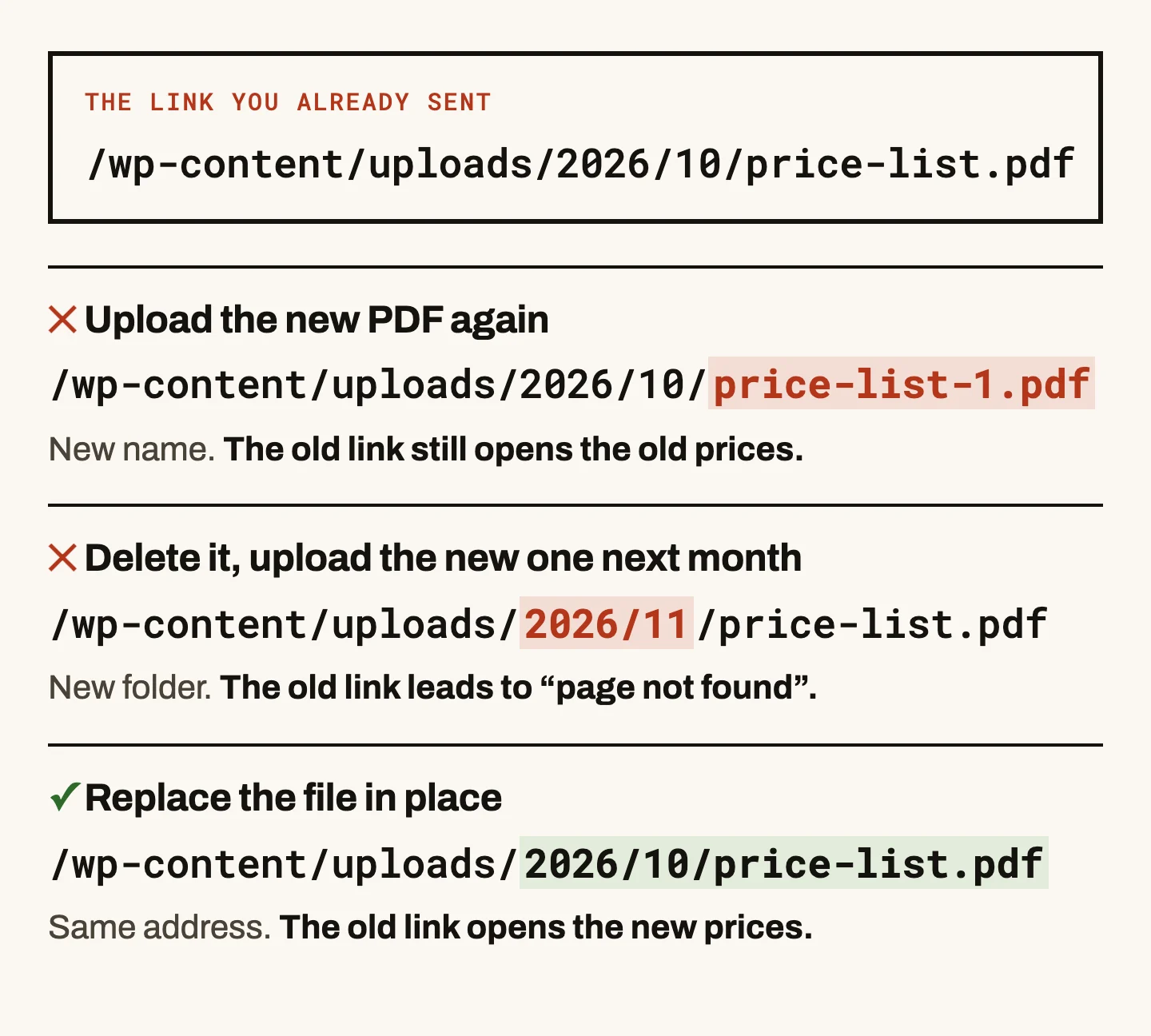
WordPress never overwrites files. If price-list.pdf already exists, your upload is saved as price-list-1.pdf. On top of that, WordPress puts every upload in a folder for the current month. That’s the “Organize my uploads into month- and year-based folders” setting in Settings > Media, and it’s on by default. So a file you upload in November goes into /2026/11/, even if the old one is in /2026/10/.
Option 1: replace the file by hand
Without a plugin, you delete the old file and upload the new one with exactly the same name. The hard part is getting it into the right folder.
If the old file was uploaded this month
- In Media > Library, open the old file and copy its File URL.
- On your computer, rename the new file to match the old name exactly, including capital letters.
- Delete the old file with “Delete permanently”, then upload the new one right away in Media > Add Media File.
- Compare the new File URL with the one you copied. If it ends in
-1.pdf, the old file is still there.
If the old file is from an earlier month
A regular upload would go into this month’s folder. There is one exception, though: when you upload a file while editing a post, WordPress puts it in the folder for that post’s date. This works with posts, not pages.
- Look at the old file’s URL and note the year and month, for example
2026/10. - In Posts > All Posts, find a post from that month. If there isn’t one, create a draft and set its date to that month.
- Delete the old file in Media > Library with “Delete permanently”.
- Open the post, add a File block and upload the new PDF with the old name. You don’t need to keep the block or save the post. The file is already in the Media Library and stays there, even if you delete the draft afterwards.
- Compare the new File URL with the old one.
The downsides of doing it by hand
- Between deleting and uploading, the link doesn’t work. Do both steps one right after the other.
- WordPress treats the new file as a new item. Its title and description are empty, and anything on your site that was connected to the old item, rather than linking to its address, has to be set up again.
- There’s no undo. Keep a copy of the old file.
You can also replace the file on the server over SFTP, using the same folder and name. The link keeps working the whole time, but WordPress doesn’t know the file has changed. When you first uploaded the PDF, WordPress made a preview image of its first page, and the Media Library will keep showing that old preview.
Option 2: use a plugin that replaces the file
A media replace plugin writes the new file over the old one, keeping the same folder, the same name and the same item in the Media Library. You don’t delete anything, the month doesn’t matter, and you don’t need access to the server. There are several of these in the WordPress plugin directory, and they work for any media file, not only PDFs.
We built Versilink because of that document. It replaces files the same way, and it also keeps a version history, so a wrong upload is easy to undo. It’s free on wordpress.org.
- In Media > Library, click “Create Document” under the file.
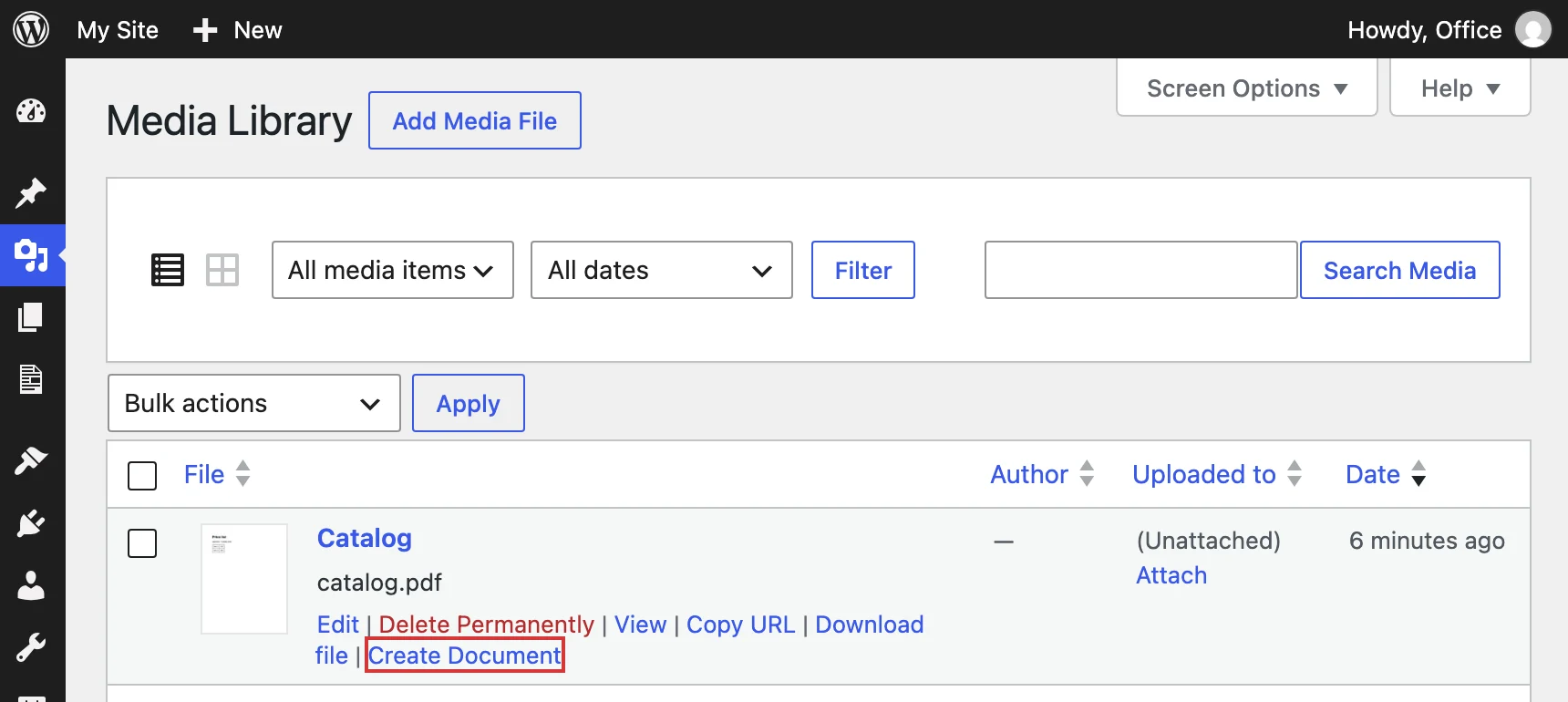
- Open the Document, choose the new file, add a note if you want, and click Upload New Version.
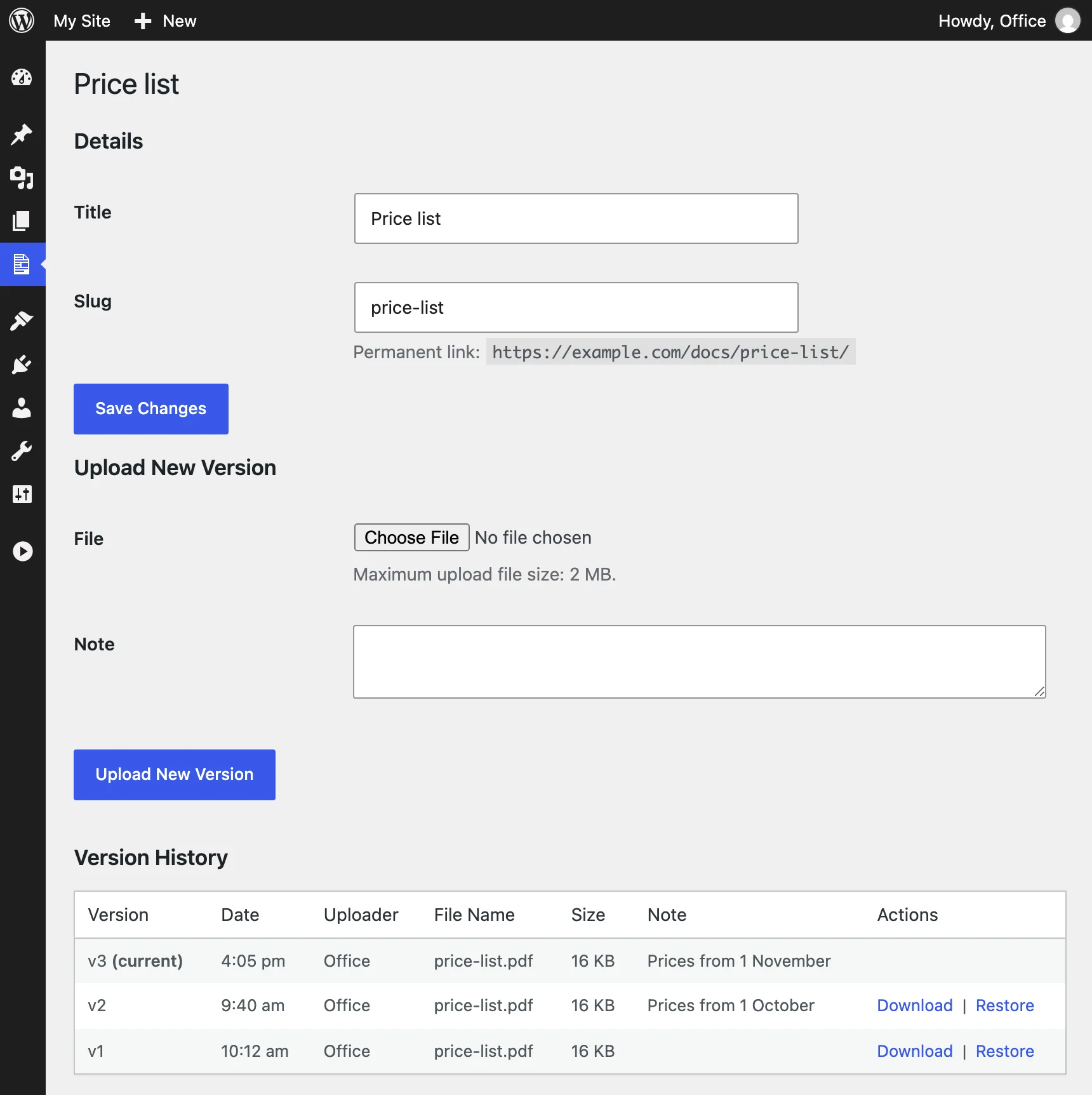
That’s it: the old link now opens the new file. If someone uploads the wrong file, click Restore next to the previous version.
Each Document also gets a short link, such as example.com/docs/price-list, that always opens the latest version. We’ll come back to why that matters.
Check that it worked
Open the old link in a private browser window. If you still see the old file, it’s coming from a cache, usually a CDN. Cloudflare, for example, caches PDFs by default, so purge that file’s URL in the Cloudflare dashboard. Then clear any cache in your hosting panel or caching plugin.
Which option to choose
It depends on how often the file changes and where you’ve shared the link.
- The file rarely changes, and a few minutes of manual work is fine. Do it by hand.
- The file changes from time to time, and you don’t need the old versions. Use a media replace plugin. It’s faster, and the link never breaks.
- The file changes regularly, or the link is printed somewhere. Use Versilink. If the wrong file goes up, or a client asks what your prices were in March, the earlier version is still there.
Whatever you choose, one habit fixes this for good: stop sharing the file’s own address. A link like /wp-content/uploads/2026/10/price-list.pdf depends on one folder and one file name. Share an address you control instead, such as a page on your site that links to the latest PDF, or a short link like /docs/price-list. Then every update means changing one thing on your site, and every link you’ve already sent or printed keeps working. A short link works as long as Versilink is turned on, while a page doesn’t depend on any plugin.
Questions people ask
Will the old file still be in the Media Library?
Not if you replace it by hand, because you delete or overwrite it. A media replace plugin overwrites it as well, unless the plugin keeps versions. Versilink keeps earlier versions in the Document’s history, outside the Media Library.
Can I replace a PDF with a Word file?
Not at the same link. A different file type has a different extension (.pdf or .docx), so it gets a different address. In Versilink, the old .pdf address keeps working but goes on showing the last PDF, and the plugin warns you about it. If the PDF link is already printed somewhere, stick with PDF.
Should I put a date or version number in the file name?
Only if nobody has the old link yet. Every new file name is a new address, so the links you’ve already shared keep opening the old file. If the file is going to change, keep one name and replace the file, or share a page or a short link.
Will Google pick up the new PDF?
Yes, the next time it crawls that address. To speed things up, open the URL Inspection tool in Google Search Console, enter the file’s URL and click Request indexing.
WordPress plugin, free on wordpress.org
Versilink
Replaces a PDF, price list or catalogue in place, so the links already sent by email or posted in an ad open the new file. Every version is kept, and any earlier one can be restored.
More in Guides
How to make a whole card clickable in WordPress
The block editor can't link a whole Group, Column or Cover block. You can still make the whole card clickable, with CSS or with a plugin.
Stripe says paid, WooCommerce says cancelled: how to find and fix those orders
WooCommerce cancelled an order Stripe shows as paid? Why "Unpaid order cancelled – time limit reached" happens and how to find and fix each affected order.